

Most users don’t need this page — the one-click activation link installs everything automatically. Use manual installation when you’re installing the eSIM on a different phone than the one you bought it on (each eSIM still works on one device only), the link doesn’t open, or you prefer QR/code entry.Your QR code, SM-DP+ Address, and Activation Code are all on the eSIM detail screen in the Fizen App, and in your confirmation email.
- iOS
- Samsung
- Pixel
- Xiaomi
- Oppo / Vivo
- Honor / Huawei
- Other Android
Via QR code
1
Open Settings → Cellular (or Mobile Data)

2
Tap Add eSIM

3
Choose 'Use QR Code'

4
Scan the QR code from the eSIM detail screen
You’ll need the QR code displayed on another screen or printed out, so this phone’s camera can scan it. (The eSIM still installs on this phone only.)
5
Tap Continue and wait for activation

6
Choose labels for your new eSIM line

7
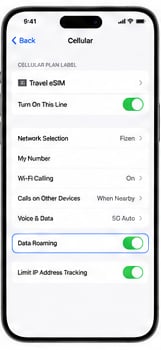
Enable 'Turn On This Line' and 'Data Roaming'
Enter details manually
1
Open Settings → Cellular → Add eSIM → 'Use QR Code'
Same path as the QR flow (screens 1–3 above).
2
Tap 'Enter Details Manually' at the bottom of the screen
3
Paste the SM-DP+ Address and Activation Code
Copy both from the eSIM detail screen in the Fizen App, then tap Next.
4
Wait for activation, choose labels, then enable 'Turn On This Line' and 'Data Roaming'
Same as screens 5–7 in the QR flow above.
If you can’t connect after installing, configure the Cellular Data Network APN settings:


